
Product · Reconcilio Portal
Automate reconciliation from statement to closing balance.

Built for speed and volume
Algorithmic reconciliation for hundreds of thousands of transactions. Import and processing limits vary by input path.
Repeatable matching
Run the same transaction inputs through the same engine version and you get the same automated matches. There are no matching rules for your team to maintain.
Balances you can check
Trace a difference from the closing balance back to the outstanding items. The report also shows any amount that still needs investigation.
The engine reconciles. Your team makes the judgement.
01
Bring in two datasets
Bring in any two datasets from your banks, suppliers, customers, payroll systems or ERP. Choose the records you need to compare.
Files and connected records
Upload Excel, CSV or PDF from your existing systems. OCR extracts PDF transaction tables for review before validation; the mapping tool prepares varied layouts. Supported ERP and bank API connections can download data directly. File and processing limits apply.
BankSupplierCustomerPayrollERPAny two datasets
02
Reconcile transactions and balances
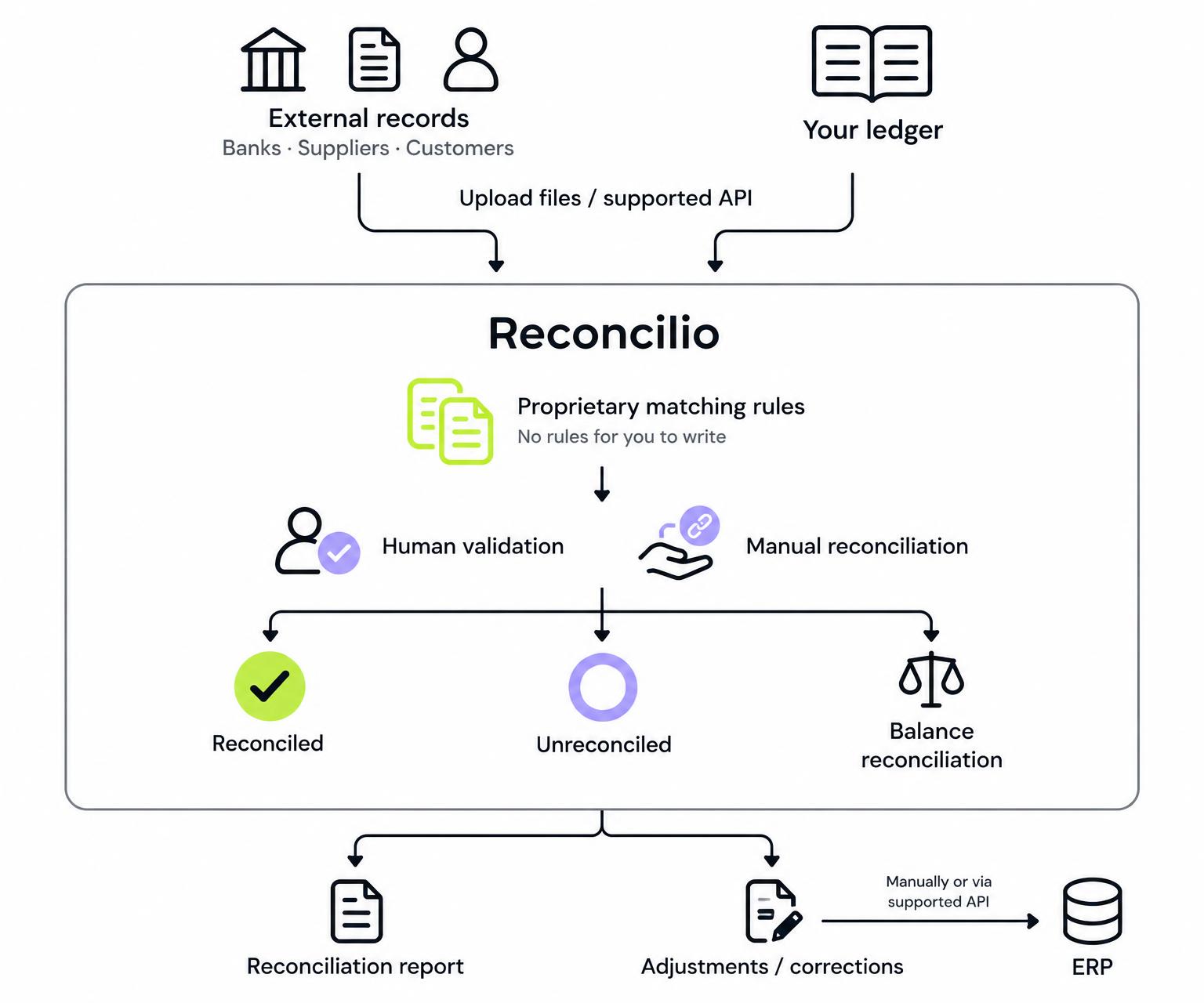
The proprietary engine works through individual transactions and groups, considers opening balances and calculates closing balances to check consistency.
Individual and grouped matching
The algorithmic engine supports 1 to 1, 1 to N, N to 1 and N to N matching, without matching rules for your team to configure.
When opening balances differ
Opening balances must agree. If they do not, Reconcilio creates an opening balance difference on the ledger side, clearly flagged in the report for investigation.
Match transactions · Check balances
03
Review matches and adjustments
The engine presents potential matches, rounding adjustments and missing charges for human validation. Your team decides what to accept, reject or investigate.
Suggestions that need judgement
Suggestions include normal matches needing confirmation, rounding adjustments and missing charges such as FX charges or bank fees. Accept or reject; a proposed match does not necessarily create an adjustment.
Create a transaction when needed
Create transactions directly on the reconciliation report to manually reconcile against a bank, supplier or customer item. Your team decides the treatment.
Suggestion → Human validation
AcceptRejectInvestigate04
Use the reconciliation result
See reconciled and unreconciled items alongside balance validation. Take the adjustments report into your accounting workflow.
Export or post adjustments
Accepted adjusting transactions and manually created transactions appear in the adjustments report. Creating an adjustment is separate from posting it. Post through a supported ERP connection after permission, account and mapping checks, or download the report to make ERP updates separately.
Work as a team
Invite colleagues to manage entities or accounts. Workspace, entity and account access is scoped through Owner, Admin, Preparer and Viewer roles. Discuss the permissions your team needs during a demo.
Reconciled · Unreconciled · Balances
Adjustments report05
Continue without starting over
Carry open items into the next period, or re-run this period with new information. Keep the decisions your team has already made.
Continue into the next period
Each finished report is saved and locked. Select it as input to the next period to include its unreconciled transactions alongside new statements.
Re-run without redoing decisions
Run again when a corrected statement or new information arrives. Reconcilio retains accepted and rejected suggestions and manual reconciliations.
Saved & locked → Next period
Open items and previous decisions retained
Potential matches and adjustments. Human validation.
Matching handled. Judgement retained.
The engine identifies potential reconciliations. Your team accepts or rejects the suggestions.
Check the reason for the difference.
Review rounding differences and possible missing FX or commission charges against the evidence.
A match is not always an adjustment.
Confirm the pairing and accounting treatment before deciding whether a new transaction is needed.
Confirm a match
- External statement
- Payment · 240.00
- Ledger statement
- Receipt · 240.00
Suggested match
Confirm the pairing. No adjusting transaction is needed in this example.
Review rounding
- External statement
- Invoice · 90.02
- Ledger statement
- Invoice · 90.00
Suggested adjustment · +0.02
Review the proposed rounding transaction before accepting or rejecting.
Review a possible fee on a receipt
- External statement
- Net receipt · €15.00
- Ledger statement
- Gross receipt · €17.00
Possible fee deducted · €2.00
€17 gross less €2 equals €15 net. Check the settlement advice and whether the fee was already recorded.
How we reconcile?
One transaction (or a group) on either side.
The engine works beyond simple pairs. It reconciles one transaction against many, many against one, and groups against groups. When a potential reconciliation needs confirmation, it becomes a suggestion for your team to validate.
Balance reconciliation. Every difference accounted for.
Closing balances, outstanding items and the remaining difference—together in one report.
Balance reconciliation
September 2026 · Example Supplier
- Ledger closing balance
- −737,320.98
- Supplier debits missing from ledger
- −27,855.00
- Ledger debits missing from supplier statement
- −29,605.00
- Adjusted ledger balance
- −794,780.98
- Supplier closing balance
- −794,780.98
- Difference
- 0.00
Keep open transactions in the work.
Recurring reconciliation starts with your selected previous report. Re-runs revisit the current reconciliation with new information. Both preserve work, but they solve different problems.
- Next month or quarter?
- Select the saved, locked previous report as input.
- A corrected statement for this period?
- Re-run and retain previous suggestions and manual decisions.
September report
Saved and locked
TXN-204 · Outstanding transaction · EUR 240.00
Unreconciled
October reconciliation
Previous report selected as input
September’s open transaction is included alongside October’s new datasets.
Your entities. Your accounts. Your records.
Create the entity, add its accounts and choose their types. Import the two records as Excel, CSV or PDF in any layout, or use a supported connection. For records outside the standard account workflows, use Custom matching to compare any two datasets.
Excel or CSV
Upload exported records
Bring your ledger exports and external statements in their existing layout. Reconcilio helps map the fields.
Upload statements
OCR extracts the transaction tables. Review the extracted records before validation.
Supported API
Connect your ERP or bank
Download records directly through a supported connection. Availability depends on the provider and operation.
External records + your ledger → Reconcilio Portal
Bank, supplier or customer records, compared with your ledger. Use files, supported connections or a combination.
Questions before you start
How is Reconcilio Portal different from Reconcilio Connect?
Reconcilio Portal is the workspace for your entities, accounts and reconciliation. Reconcilio Connect adds supplier and customer portals for statement uploads and joint resolution: discuss, align and agree on unreconciled items while keeping your internal reconciliation private.
Is matching in Reconcilio Portal powered by AI?
Reconcilio uses a deterministic engine to decide which transactions match. A language model does not make that decision. You can inspect the records in a match and accept or reject suggestions. Those review decisions form part of the completed reconciliation.
Does it only match one transaction to another?
No. It supports 1 to 1, 1 to N, N to 1 and N to N: individual pairs, a transaction against a group, and groups against groups.
Can it reconcile hundreds of thousands of transactions?
Yes. The engine is built to reconcile hundreds of thousands of transactions. File, extraction and interactive mapping limits are separate and depend on how you bring records in. Confirm the input path for your volume in a demo.
Does Reconcilio reconcile everything automatically?
No. Unreconciled items need review, and suggested adjusting transactions need an accept or reject decision. Your team remains responsible for the evidence and accounting treatment.
What if our ERP is not connected?
Upload exported files and download the adjustments report to track updates to make in your ERP. Direct downloads and posting require a supported connection; posting remains a separate step from creating an adjustment.
Which ERP and bank connections are supported?
Confirm your exact ERP, bank and required download or posting workflow in a demo. Supported connections vary; importing files from your ERP does not require a direct connector.
Start with 1,500 free reconciliations.
Create an account and reconcile your own records, or book a demo to discuss volume, users and deployment.